Rule section
The id, name, description, category, scope, severity and matching of a rule.
The Rule section, at the top of the editor, says what the rule is and what it looks at.
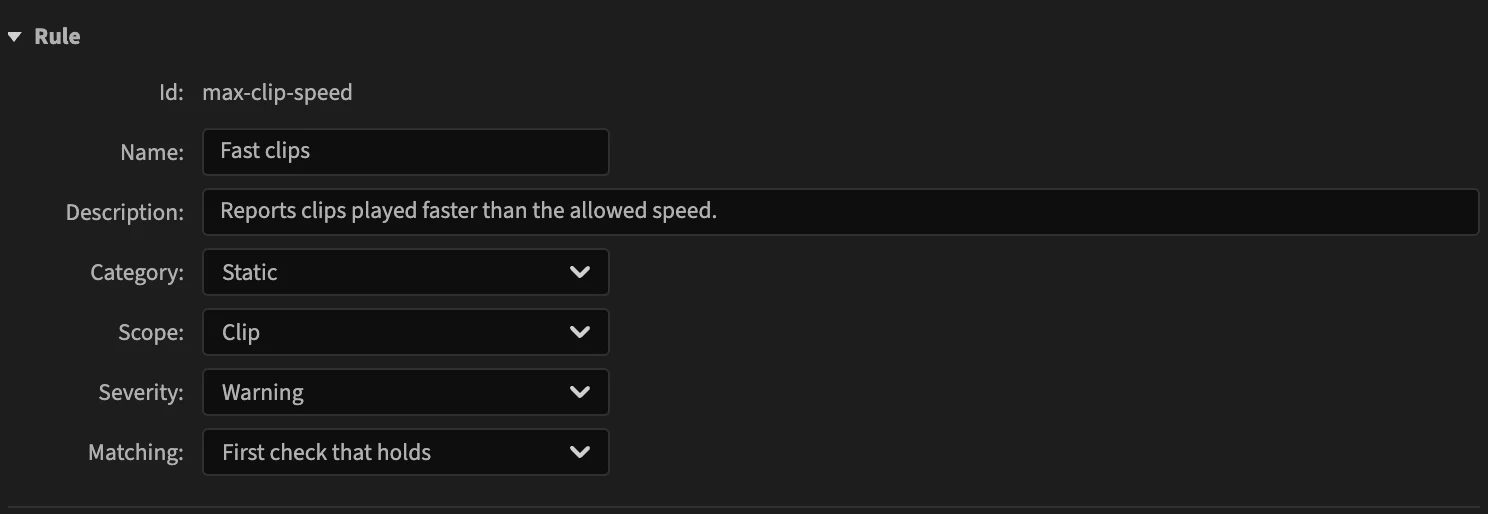
Id
The id is the rule's permanent name, such as max-clip-speed: lower-case letters and digits in words joined by hyphens. The rule's file is named after it (max-clip-speed.rule.json), and every report names it.
You choose the id when you create a rule, and it cannot change afterwards: the field becomes plain text once the rule is saved. A new rule cannot take the id of an existing rule; the editor says A rule with id "…" already exists. To replace a built-in rule, edit it instead.
Name and description
The Name is the short title of the rule in the Rules settings. The Description is one sentence saying what the rule reports, shown under the name. Both are required.
They are edited in the panel's language. See Translations.
Category
Where the rule sits among the others. It does not change what the rule does.
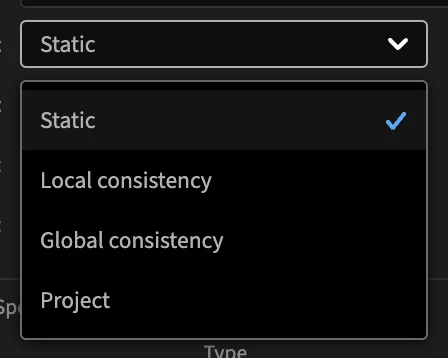
| Category | For a rule that… |
|---|---|
| Static | checks a fact about one item: an offline clip, a disabled clip, a gap. |
| Local consistency | compares a clip with the clips around it. |
| Global consistency | compares a clip with all the clips of the sequence. |
| Project | checks a requirement for the whole sequence: tracks, markers, settings. |
Scope
The scope decides what the rule looks at. The rule's checks run once for every item of the scope, and the fields you can use are the fields of that item.
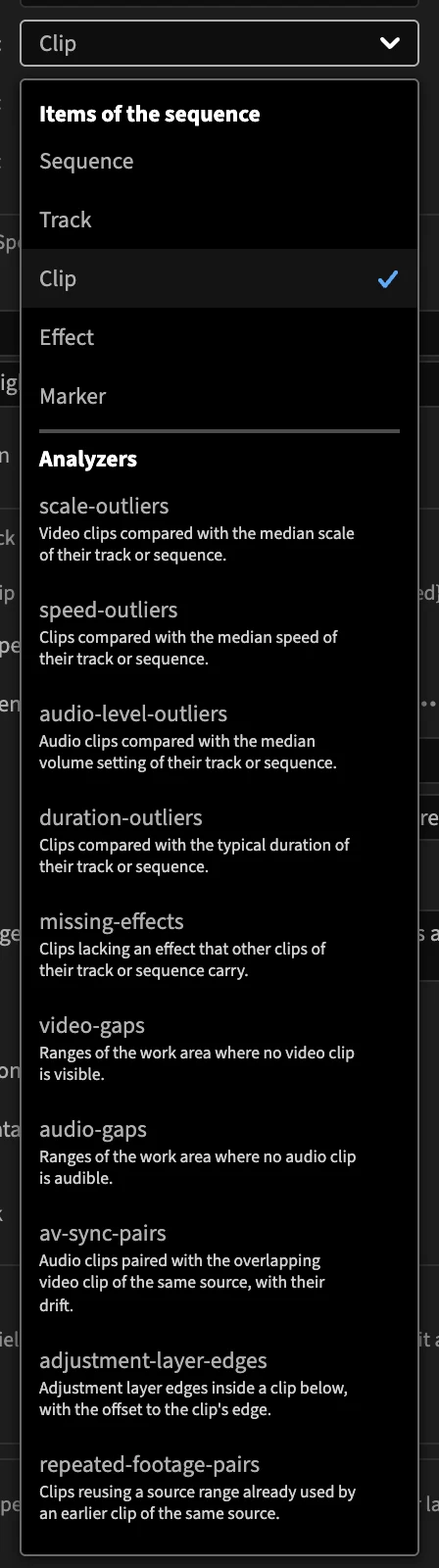
Under Items of the sequence:
| Scope | The checks run on… | Fields you can use |
|---|---|---|
| Sequence | the sequence, once | sequence.* |
| Track | every video track, then every audio track | track.*, sequence.* |
| Clip | every clip, video tracks first | clip.*, track.*, sequence.* |
| Effect | every effect you applied to a clip | effect.*, clip.*, track.*, sequence.* |
| Marker | every sequence marker | marker.*, sequence.* |
The rule's options (options.*) are available in every scope. The Fields reference describes each field.
Under Analyzers are computed scopes, which the built-in rules use for gaps, outliers, pairs of clips and requirements; their items are computed by PPROLint. Picking one adds the options it needs to the Options section. Computed scopes describes each, with its fields; the simplest way to use one is to start from the built-in rule that uses it.
Changing the scope of a rule with checks
Fields belong to a scope. After a change of scope, a condition that names a field the new scope does not have shows a problem: pick another field, or change the scope back.
A single check can also run on another scope than the rule's: see Checks.
Severity
How serious a report is: Info, Warning or Error. The panel shows each with its icon.
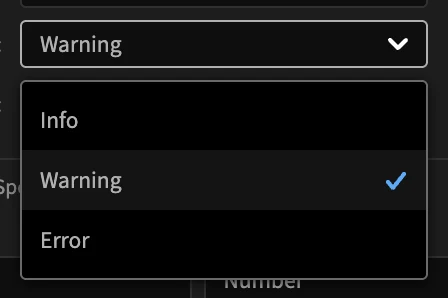
Use Info for something unusual that may be deliberate, Warning or Error for a certain problem.
Matching
What happens when an item meets the condition of several checks.
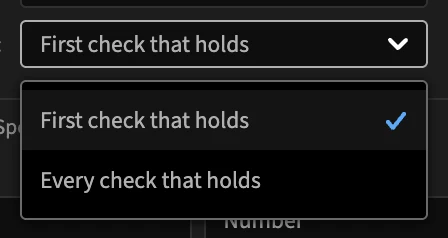
- First check that holds (the default): checks are tried in order, and the first one that holds reports. An item gets at most one report from the rule.
- Every check that holds: every check that holds reports, so an item can get several reports. Use it when the checks describe different problems.
See Checks.
In a rule file
| Editor | Rule file |
|---|---|
| Id, Name, Description | id, name, description |
| Category | category: static, local-consistency, global-consistency, project |
| Scope | scope: sequence, track, clip, effect, marker, or a computed scope id |
| Severity | severity: info, warning, error |
| Matching | matching: first, all |
See Rule file.