Saving and leaving
Save a rule, fix the problems that block saving, change and revert built-in rules, delete your rules.
The footer of the editor says where the rule is saved and holds its buttons.

Save
Save writes the rule to your rules folder, closes the editor and reloads the rules: the change applies from the next check, and the panel confirms with Rule saved.
Save is disabled while:
- the rule has problems;
- nothing has changed since you opened the rule.
| You are editing | Save writes |
|---|---|
| a new rule | a new file, <id>.rule.json. |
| one of your rules | its own file, whatever its name. |
| a built-in rule | your copy, <id>.rule.json, which replaces the built-in rule. |
Problems
The editor checks the rule a moment after every change. Each problem shows twice: in the list under the header, and under the control at fault, in red.
![3 problems to fix before saving: data.maxSpeed, checks[0].condition.all[1].value.field and checks[0].message.en_US name the unknown field options.maxSpeed](/docs/editor/editor-problems.webp)
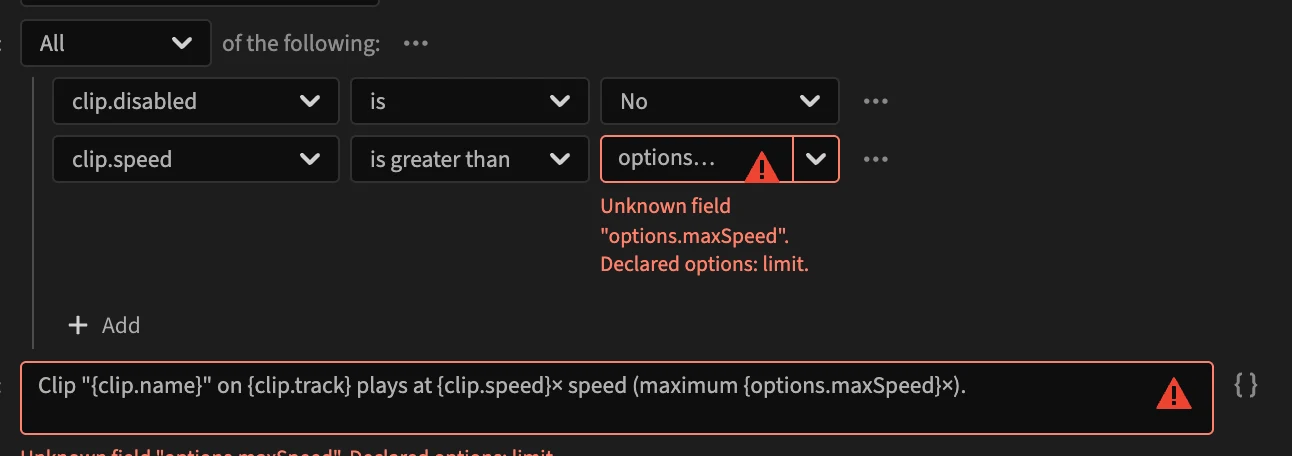
The list gives the place of each problem in the rule:
| Place | Means |
|---|---|
name.en_US | the rule's name, in English |
options.maxSpeed.default | the default of the option maxSpeed |
checks[0].condition | the condition of the first check (checks[1] is the second) |
checks[0].condition.all[1] | the second condition of the first check's All group |
checks[0].message.fr_FR | the message of the first check, in French |
data.speed | the diagnostic data entry speed |
Common problems:
| Problem | Fix |
|---|---|
| Must be a non-empty string. | Fill in the name, the description or the message. |
Must be a non-empty array… on checks | Add a check. |
| Unknown field "…" | The field is not in the check's scope, or names an option that does not exist (renamed or removed). Pick another field. |
| A rule with id "…" already exists. | Choose another id for the new rule. |
| Must be a number, like the field it is compared with. | The value does not fit the field's type. |
Leave without saving
Cancel, or ‹ Rules in the header, leaves the editor. If you changed something, PPROLint asks first:
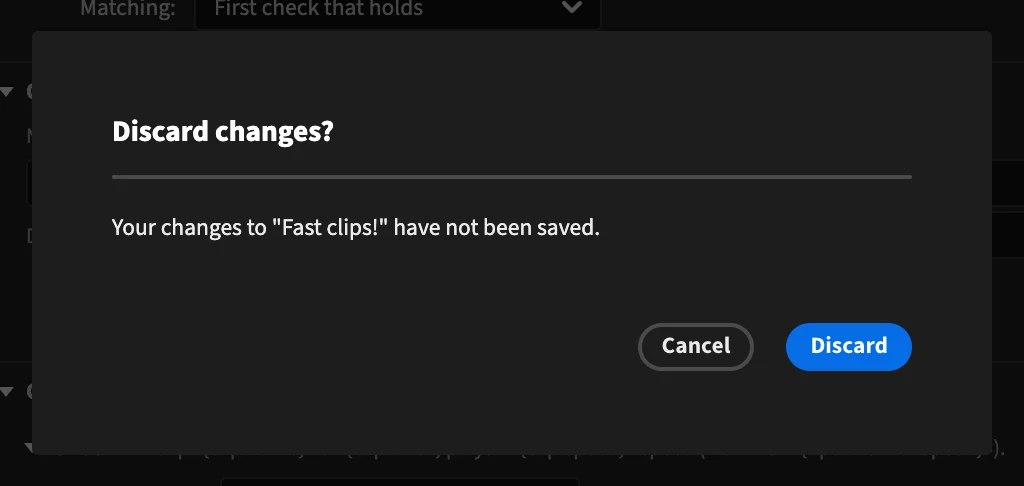
Discard drops your changes; Cancel goes back to the editor.
Change a built-in rule
A built-in rule opens in the editor like any other. Change its options, severity, condition or messages, then save: the editor writes your copy, <id>.rule.json, in your rules folder. The footer says so before you save:
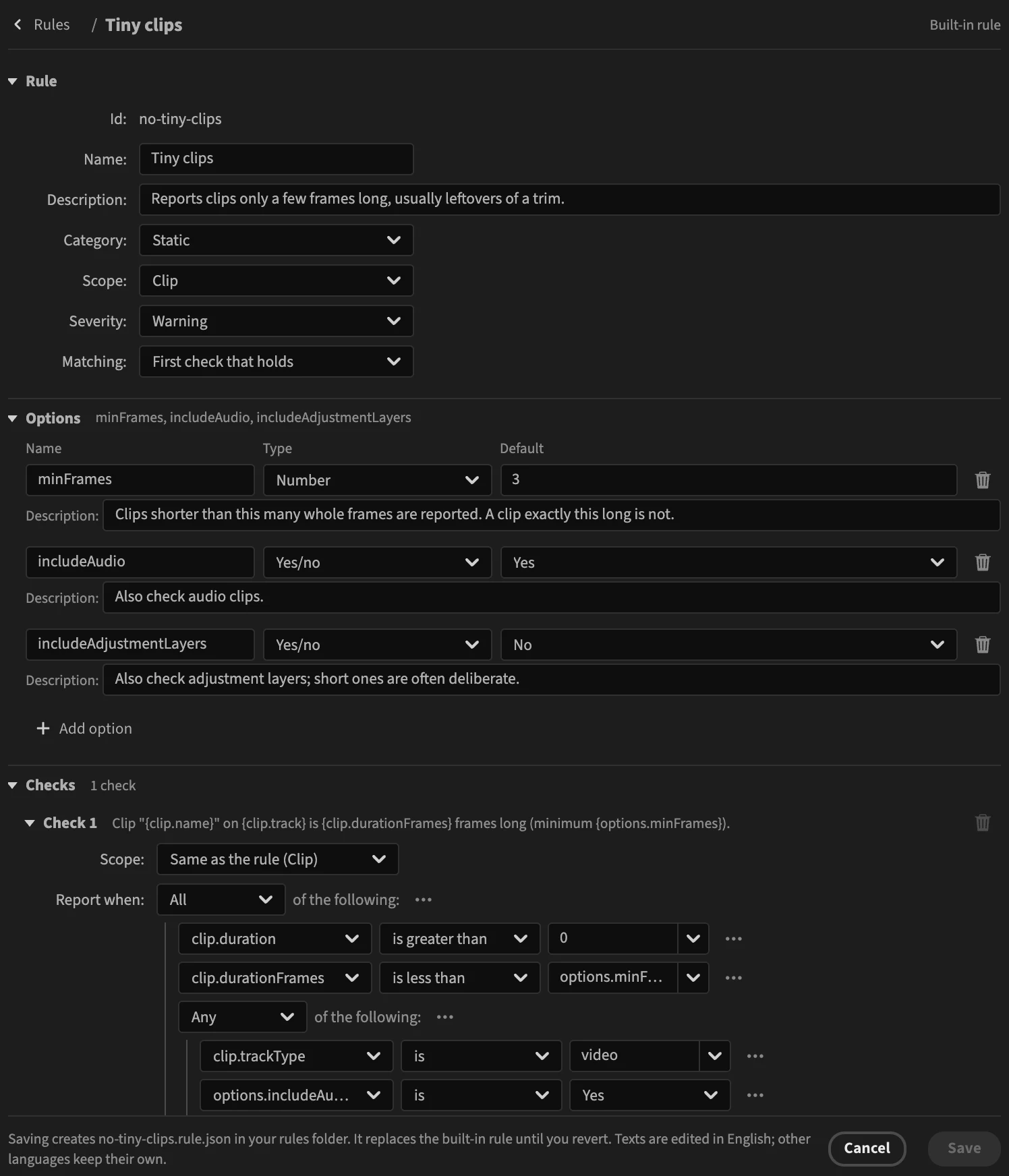
From then on, your copy runs instead of the built-in rule, and the Rules settings mark it Modified built-in rule. Updates of PPROLint never overwrite it.
Revert a built-in rule
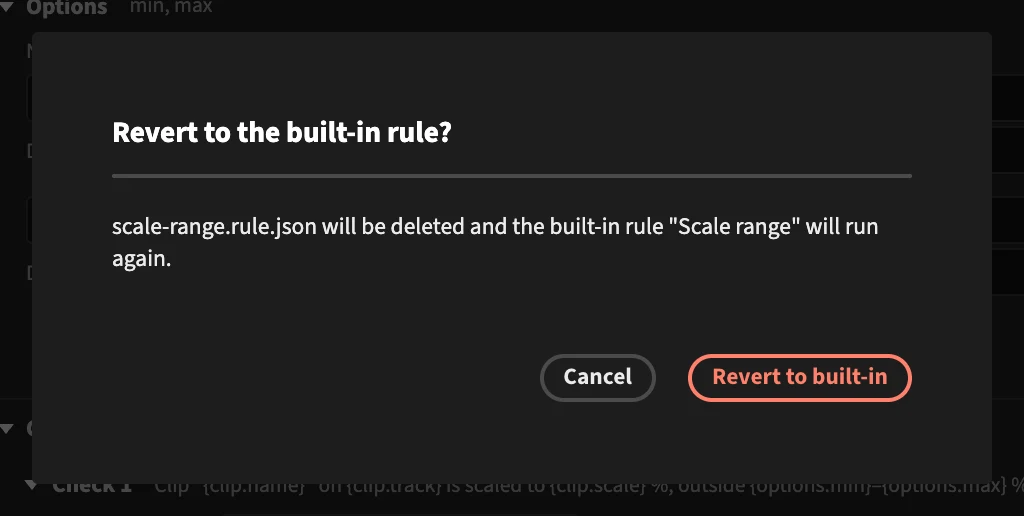
Open your copy and click Revert to built-in.

PPROLint asks to confirm, then deletes your file: the built-in rule runs again.
Delete a rule
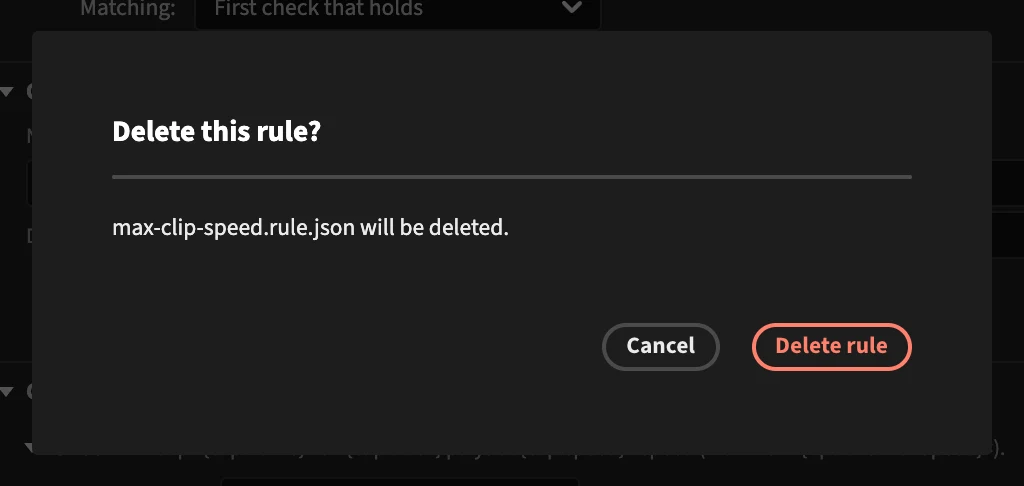
Open one of your rules and click Delete rule. PPROLint asks to confirm, then deletes its file.
To stop a rule without deleting it, turn it off in the Rules settings instead. Built-in rules cannot be deleted, only turned off.
The saved file
The editor writes a tidy rule file: defaults are left out, and texts with English only are plain strings. You can open it in a text editor, change it and click Reload rules, then open it in the editor again. See Rule files.