The rule editor
Create and change rules in the PPROLint panel, without writing any JSON.
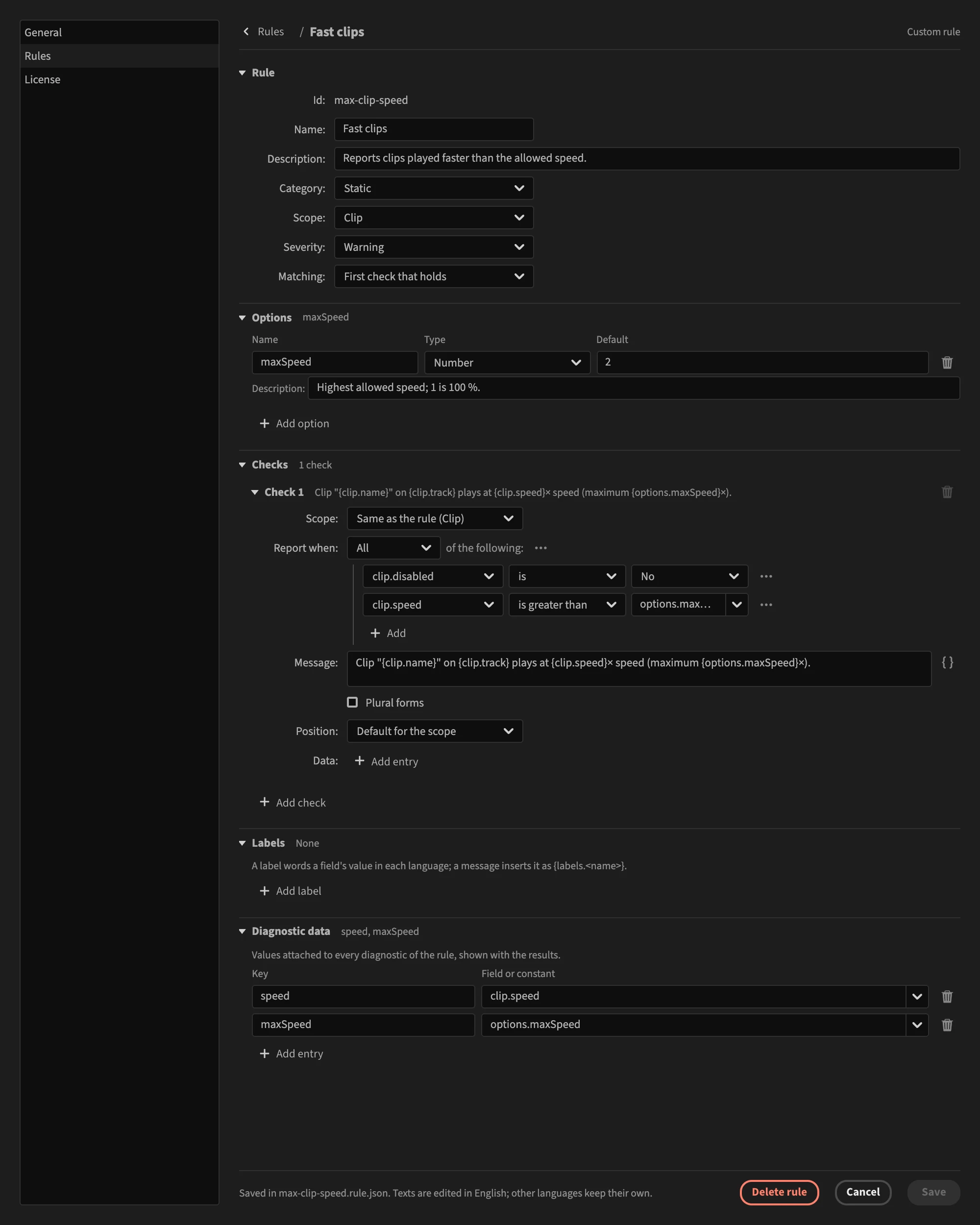
The rule editor builds rules with menus and fields, in the PPROLint settings. Every rule you can write as a rule file can be built here, and the editor checks the rule as you type: you cannot save a rule that would not work.
Open the editor
Open the PPROLint panel's settings and choose Rules. Then:
- to create a rule, click the New rule button next to the search field and choose New rule from scratch;
- to change a rule, built-in or yours, click the cogwheel at the right of its row.
The editor replaces the list of rules. ‹ Rules, at the top left, takes you back.
See The Rules settings for everything else the list does.
How the editor is laid out
The editor reads from top to bottom, like Premiere's Effect Controls panel.

The header shows the rule's name and what kind of rule it is:
| Kind | Meaning |
|---|---|
| Built-in rule | A rule PPROLint ships with. Saving it writes your own copy. |
| Custom rule | A rule you created or imported. |
| Modified built-in rule | Your copy of a built-in rule, which replaces it. |
The sections hold the parts of the rule. Click a section's title to fold it; a folded section shows a summary at the right of its title (the option names, the number of checks).
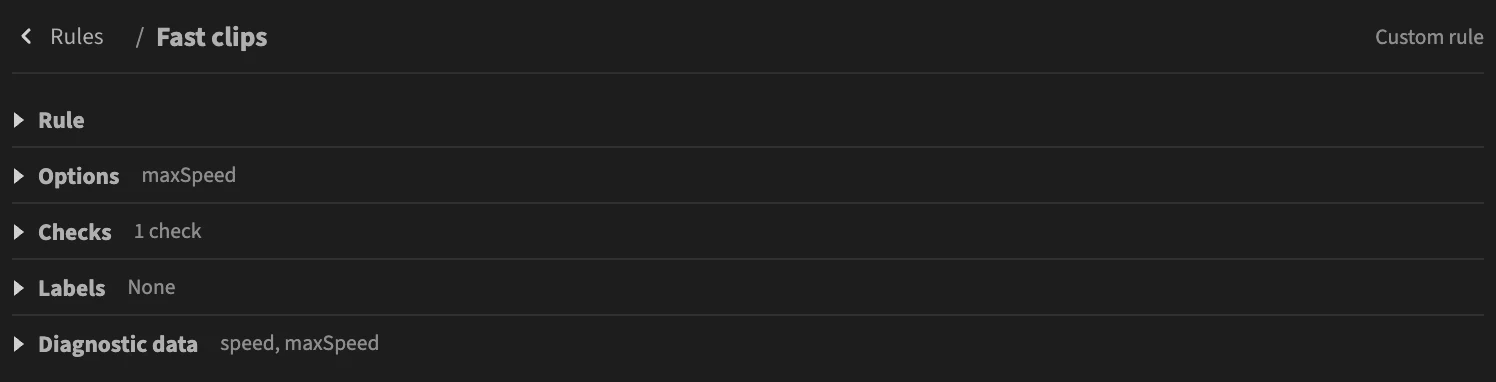
| Section | What it holds | Page |
|---|---|---|
| Rule | Id, name, description, category, scope, severity, matching. | Rule section |
| Options | Values a user can tune, such as a threshold. | Options |
| Checks | When to report (the condition) and what to say (the message). | Checks, Conditions, Messages |
| Labels | Words that change with a value, in each language. | Labels |
| Diagnostic data | Values attached to every report. | Data |
The footer says where the rule is saved and in which language you are editing its texts, with the buttons to save or leave.

Problems are shown as you type
The editor checks the rule a moment after each change. When something is wrong, a box under the header lists every problem, and the control at fault turns red with the reason under it. Save stays disabled until the list is empty.

Each problem starts with the place it was found, such as checks[0].message.en_US: the message of the first check, in English. See Saving and leaving.
What the editor writes
The editor writes an ordinary rule file, <id>.rule.json, in your rules folder. You can open it in a text editor, share it with your team, or import it on another computer. Anything you learn here applies to rule files, and the other way round: each page of this section links to its counterpart in Rule files.