The Rules settings
Turn rules on and off, change their severity and options, search them, create, import and reload rule files, and see which files failed to load.
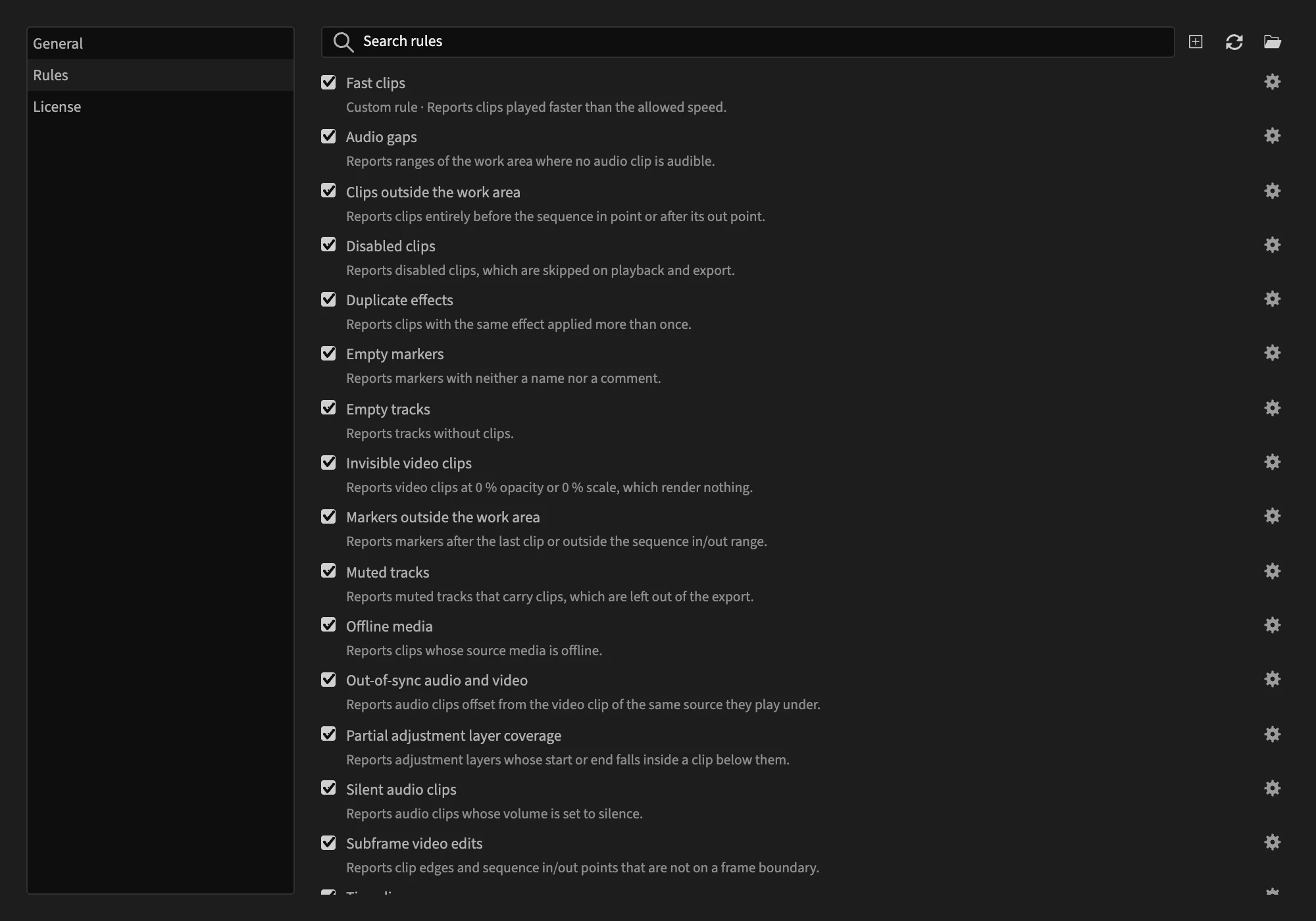
Every rule PPROLint runs is listed in the panel's settings, under Rules: the built-in rules and yours, with their name and description.
Turn a rule on or off
Each rule has a checkbox. A rule that is off does not run, and the next check drops its reports. Turning a rule off keeps its file and its settings: turn it back on at any time.
Preset
Preset, above the search, sets the severity every rule starts from:
| Preset | Severity |
|---|---|
| Recommended | Each rule reports at the severity set in its rule file. |
| Strict | Rules that report at Info level report at Warning instead. |
A severity chosen for one rule wins over the preset.
Change a rule's severity
The list at the right of a rule sets how serious its reports are. Default (with the severity it stands for, such as Default (Warning)) follows the rule file and the preset; Info, Warning and Error replace it for this rule. The rule file does not change.
Change a rule's options
The options button, next to the severity, unfolds the options of a rule that has some: its thresholds, switches and lists, each with its description. A value you change applies from the next check, and the rule's description ends with Options changed. Reset options goes back to the rule's defaults.
These values belong to your settings: the rule file does not change. To change the defaults themselves, or anything else in the rule, edit the rule.
Find a rule
Type in Search rules to keep only the rules whose name or description contains the text. The search ignores case and accents.
Which rules are yours
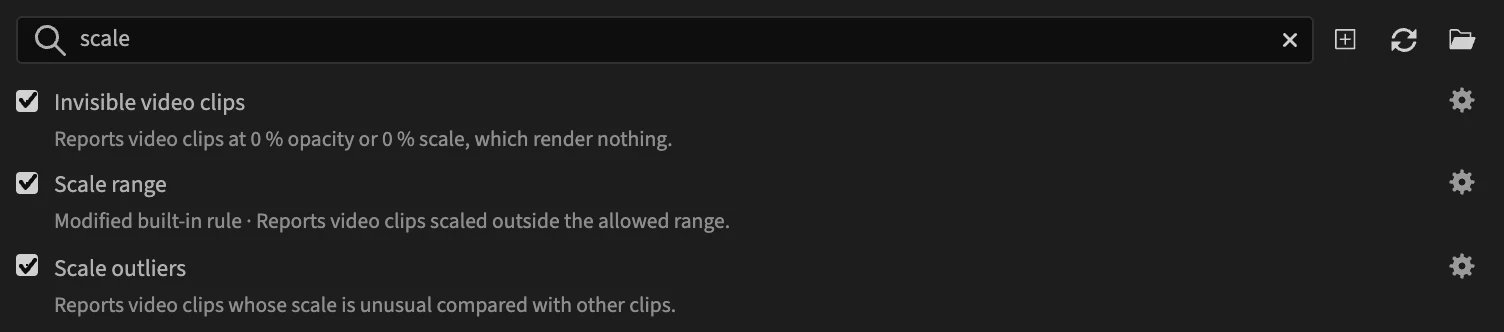
The description of a rule tells where it comes from:
| Shown before the description | The rule is… |
|---|---|
| nothing | a built-in rule, as PPROLint ships it. |
| Custom rule | a rule you created or imported. |
| Modified built-in rule | your copy of a built-in rule. It replaces the built-in rule until you revert it. |
The buttons next to the search
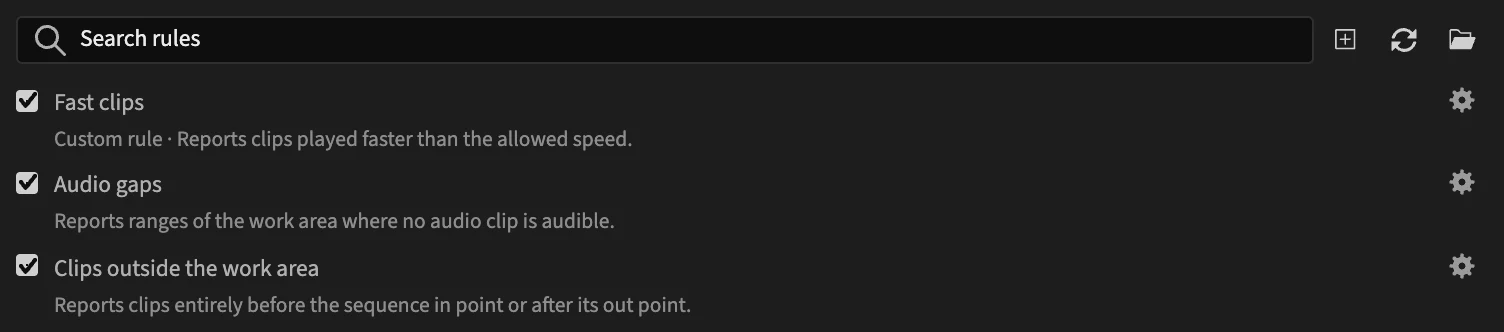
From left to right:
| Button | What it does |
|---|---|
| New rule | A menu: New rule from scratch opens an empty rule in the editor; Import rules… copies rule files into your rules folder. |
| Reload rules | Reads your rules folder again. Use it after changing or adding a file by hand. |
| Open rules folder | Shows your rules folder in Finder or Explorer. Premiere asks your permission first. |

Import rule files
New rule > Import rules… lets you pick one or more rule files, for example files a colleague sent you. PPROLint copies them into your rules folder and reloads the rules. A .json file is renamed .rule.json, and a file never overwrites another one: if the name is taken, a number is added to it.
If an imported file uses the id of a built-in rule, it replaces that rule and shows as Modified built-in rule.
Edit a rule
The cogwheel at the right of a rule opens it in the rule editor. Built-in rules open too: saving one writes your own copy, which replaces it. See Change a built-in rule.
Rule files that could not be loaded
A rule file with a mistake is not loaded. The list shows it in a box at the top, with the file name and each problem. The other rules still run.
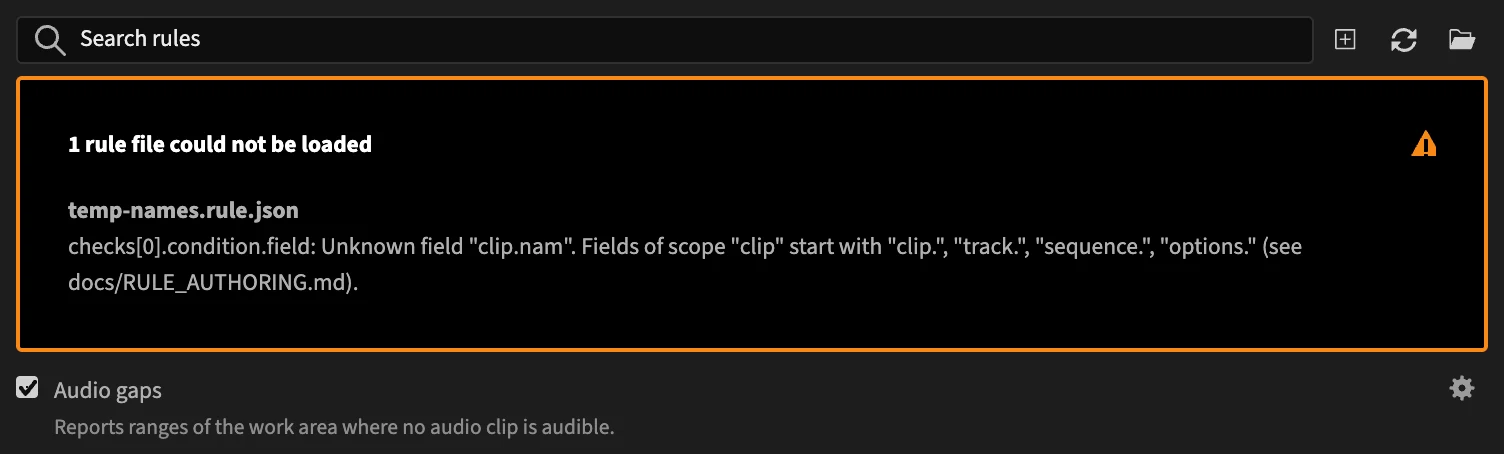
This only happens to files edited outside the editor, since the editor never saves a rule with problems. Fix the file in a text editor and click Reload rules, or delete it from the rules folder. Troubleshooting explains the messages.